HOME
|
Before following this procedure, please download and install all available windows updates.
In order to view the performance videos, you will need
to download and install
the DivX codec for Windows Media Player. Once downloaded, double click on the installer file to begin installation.
1. Choose your language from the dropdown menu, and click "OK"
2. Click "Next" to move on from the welcome screen (Note: Your version will be newer than 6.6).
3. Check the box to accept the license agreement and click "Next"
4. Check the box to accept the license agreement addenda, and click "Next"
5. Uncheck every box except the DivX codec selection, and click "Next"
6. Choose your installation location, and click "Next"
7. Uncheck the boxes for Google Toolbar and Google Desktop, and click "Next"
8. You do not need to enter an email address, just click "Next"
9. Click close to finish the installation program.
10. Go To: Start Menu > Programs > DivX > DivX Codec > Decoder Configuration Utility Click on the "Toolbar" tab at the top, and uncheck the box for "Show DivX logo watermark"
If you're videos play upside down, go to the "Decoder" tab, and uncheck the box for "Use Advance Hardware Overlay"
11. Click "OK", and the installation is complete
Windows Media Player Tips (This is only available with Windows XP Operating System and Media Player 10 and later) 1. Click on any of the links for performance videos and open them using windows media player. 2. Go to the following menu selection: View > Enhancements > Play Speed Settings
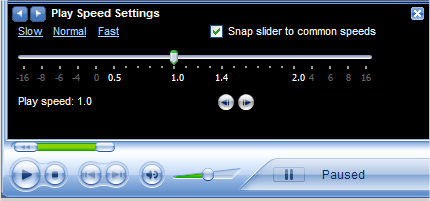
This menu will allow you to change the speed of video playback using the slider. You can also pause the video at any point and advance the video frame by frame using the small silver arrows.
|